

Choosing a Generator
Verified against source (11)
Attachment/AttachmentTemplate.Edit.xsltAttachment/AttachmentTemplate.Select.xsltdocs/merge-use-cases.mddocs/word-mergefield-authoring.mdqbo4.Document.Bridge/BridgeGenerator.csqbo4.Document.Bridge/ZipGeneratorCore.csRegionMerge.cs (branch fix/word-merge-regions)Extensions/RangeExtensions.csqbo4.Document.Aspose.Bridge/MethodSignatureProcessor.csExtensions/PdfDocumentExtensions.csqbo4.Document.AI/readme.md
This view shows how to set up a document template for each generator. To decide which generator a document needs, start with the Overview.
The template fields that matter
Section titled “The template fields that matter”Open Design > Documents, then create or edit a document template. The fields below decide how a document is generated; the rest (storage, file names, extranet access) are covered in Document Management.
| Field | What to enter |
|---|---|
| Applies To | The kind of record the document belongs to, such as a contact or a process (case). |
| Method | The query that supplies the data: usually the record’s summary, or a search or custom query for lists and exports. |
| Plugin | The generator. See the table below. |
| Plugin Parameters | Settings for the generator, written as a query string: Service=AsposeWords&MimeType=application/pdf. |
| Transform | The uploaded template file: a Word document, a fillable PDF, or an Excel workbook. |
| Mime Type | The output format, such as PDF. |
| Description | For an AI draft, the prompt. |
| To produce | Plugin | Plugin Parameters | Transform |
|---|---|---|---|
| A Word letter or form | BridgeGenerator |
Service=AsposeWords |
Word document |
| A filled PDF form | BridgeGenerator |
Service=AsposePdf |
Fillable PDF |
| An Excel workbook | CellsGenerator |
Excel workbook | |
| A ZIP package | ZipGeneratorCore |
Password, OnError, Link (optional) |
None |
| An AI draft | BridgeGenerator |
Service=AiMerge |
None (the prompt is in Description) |
| A Parquet or Avro export | ParquetGenerator or AvroGenerator |
None | |
| A delimited or fixed-width file | DelimitedGenerator or FixedWidthGenerator |
Layout settings | None |
| Images from PDF reports | PdfImageGenerator |
None |
BridgeGenerator can usually tell which merge to run from the Transform and Mime Type, but naming it with Service= makes the template’s intent explicit. For an AI draft, Service=AiMerge is required.
Test before it goes live
Section titled “Test before it goes live”From the template’s summary panel:
- Test Data downloads the data the template’s Method returns for a record ID you enter. Use it to see the field names to merge, or as the mail-merge source in Word. It’s available when the method returns rows (a summary, search, or query).
- Generate creates a document from the template for a record ID you enter, so you can check the result before any workflow uses it.
- Copy duplicates a template, so you can change a copy without touching the one in use.
Test every template against records that exercise it: records with missing values, and for lists, records with zero, one, and several items.
Word template
Section titled “Word template”- Write the letter in Word, with the wording exactly as it must be sent.
- Download Test Data for a representative record, and insert a merge field (Insert > Quick Parts > Field > MergeField, or Mailings > Insert Merge Field) wherever a value goes.
- Upload the document as the template’s Transform, with
Service=AsposeWordsin Plugin Parameters.
Field names are paths into the record’s data. A plain name such as FirstName finds the first FirstName anywhere in the data. To be specific, name the parent with // as the separator: Property//Address, Loan//PrincipalBalance. Never use a dot (Loan.PrincipalBalance): the field quietly renders blank. To pick one item from a list, use its position: //ContactItem[2]/LastName.
Lists repeat with a region. In a table row, put { MERGEFIELD TableStart:PaymentItem } in the first cell and { MERGEFIELD TableEnd:PaymentItem } in the last; the row repeats once per PaymentItem in the data. Keep header rows outside the region. Use the element’s full name, Item included.
Images, such as a signature or a logo, use { MERGEFIELD Image:SignatureID }, where the field’s value is the ID of a document holding the image. The image scales to fit the table cell it’s in, so put it in a cell sized the way you want it.
Formatting: values arrive as text, so Word’s number and date formats (\#, \@) don’t change them. Have the query return values already formatted. Text switches such as \* Upper work.
Moving an older template: if it uses [[FirstName]]-style placeholders, replace each with a merge field. To produce one document per item in a list, add MergeEach= and the item’s element name to Plugin Parameters; each document is merged from its own item only.
PDF form
Section titled “PDF form”Upload the fillable PDF as the Transform, with Service=AsposePdf. Each form field is filled from the data value with the same name, so write the template’s Method to return columns named after the form’s fields (open the form in a PDF editor to see them).
- Text fields are filled. Radio buttons and push buttons are not.
- A field with no matching value is cleared, even if the form had a value in it.
Passwordin Plugin Parameters encrypts the output.
Excel workbook
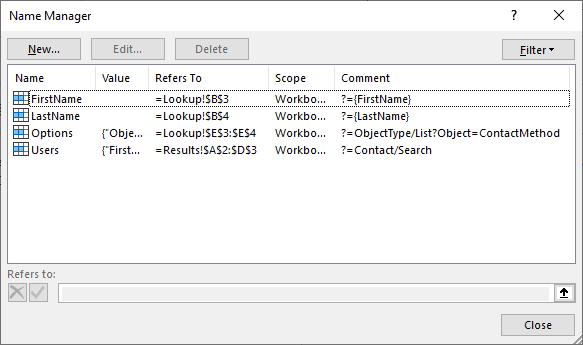
Section titled “Excel workbook”In the workbook, define named ranges (Formulas > Name Manager) and put an instruction in each range’s Comment:
| Comment | Fills the range with |
|---|---|
?={FirstName} |
A value from the record. |
?=Contact/Search |
The rows a QBO query returns, written as {Module}/{Operation}?{parameters}, for example ?=ObjectType/List?Object=ContactMethod. Parameters can use {values} from the record. |
Tables of rows: make the named range two rows high. In the first row, type the names of the columns you want from the query, in the order you want them. Columns whose header isn’t a query column keep whatever formula you put in the second row, and it’s copied to every row the query returns. Excel formulas that refer to the range grow with it.
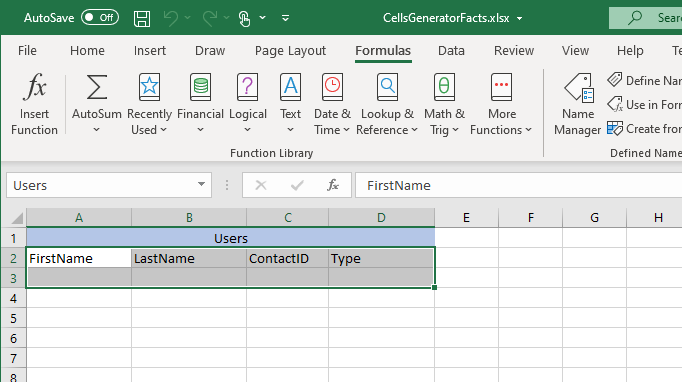
If your headers differ from the query’s column names, add a two-column range named after the first with Map on the end (UsersMap): each row pairs an Excel header with the query column it shows.
Number formats matter: a cell formatted as a number or date receives a number or date, so formulas calculate. Format a cell as text to keep leading zeros or long account numbers intact.
ZIP package
Section titled “ZIP package”Set Plugin to ZipGeneratorCore and write the Method to return the documents to include. In Plugin Parameters:
Passwordprotects the package (basic ZIP encryption; send sensitive packages over an encrypted channel too).OnError=Stopfails the whole package if one document can’t be read. By default that document is left out and marked as an error, andOnError=Ignoreleaves it out silently.Linklinks the package to the documents it contains.
Packages larger than about 4 GB are split into parts. Give documents distinct file names: two with the same name collide in the ZIP.
AI draft
Section titled “AI draft”Set Plugin to BridgeGenerator, Plugin Parameters to Service=AiMerge, and Mime Type to the output you want (PDF, Word, or Excel). Write the prompt in the template’s Description: what to draft, from what, following which procedure. The description is sent as written, so {braces} in it aren’t replaced with record values.
- The record’s data is always sent. Add
Context=Parent,Documentsto Plugin Parameters to also send the parent record and the documents the template’s Method returns.Transformsends the template’s own uploaded file. - Example documents: documents attached to the template itself are sent as examples of the output you expect. They steer the format strongly, so say in the prompt how to use them.
- Drafts take seconds to minutes each. Put a review step after the generation step in the workflow.
Data exports and fixed-format files
Section titled “Data exports and fixed-format files”- Parquet and Avro: the Method returns the data, and each result set becomes a file. A Parquet export also writes a manifest listing each file and its row count.
- Delimited and fixed-width files: the Method returns the data, and Plugin Parameters set the layout (row terminator, column headers, header and trailer records, file name). Test against the receiver’s specification.
- PDF image extraction: generate the template against a PDF document to extract its images, or give it a Method that returns the IDs of the PDF documents to process.