
Build a customer outreach workflow with follow-up calls
Verified against source (12)
decision/DecisionStepTemplate.Fields.csdecision/DecisionStep.csdecision/ImportFormTemplate.csConfig/ImportForm.configProperties/Settings.settingsDecision/DecisionStepTemplate.Edit.xsltDecision/DecisionStepTemplate.IfThen.xsltDecision/DecisionStepTemplate.Polling.xsltDecision/Decision.XmlToXslt.xsltapplication/Enumerations.csUtilities/XsltFormatting.csprocess/Process.Fields.cs
Outreach programs live or die on follow-through: a customer who doesn’t answer the first call still needs a second and a third, on schedule, and someone needs to know when to stop trying. In this walkthrough you build a workflow that does the tracking for you. It puts an outbound call on a rep’s worklist, waits a day if the call doesn’t resolve the matter, queues a second call, waits a week, queues a third, and finally marks the case Unreachable. Reps just work their queue; the workflow decides what comes next.
Who it’s for: power users who build workflows for service, collections, or retention teams.
Prerequisites
- Permission to create task templates, workflow templates, and process templates (the Templates menu).
- A team (a label of people) to work the calls. See Worklists.
Building blocks used
Section titled “Building blocks used”- Workflow: task, if/then, polling, and advanced steps, with dependencies
- Forms: the call task the rep completes
- Worklists: where the calls appear for reps
- Cases: the process that holds one customer’s outreach
- Templates: repeatability, which lets one task template serve all three calls
The flowchart
Section titled “The flowchart”The process reads top to bottom: call, check, wait, call again. Every Resolved? check that comes back yes ends the workflow; the last one that comes back no marks the customer unreachable. Each shape becomes a workflow step:
| Step | Step type | What it does |
|---|---|---|
| Outbound Call | Add a Task | Creates an Outbound Call task on a rep’s worklist. |
| Resolved? | Add an If/Then Statement | Checks whether the rep recorded the outcome as Resolved. |
| Wait a day | Add a Polling Step | Waits until a day has passed. |
| Second Call | Add a Task | Creates another Outbound Call task, named Second Call. |
| Resolved? | Add an If/Then Statement | Checks the second call’s outcome. |
| Wait a week | Add a Polling Step | Waits until a week has passed. |
| Third Call | Add a Task | Creates another Outbound Call task, named Third Call. |
| Resolved? | Add an If/Then Statement | Checks the third call’s outcome. |
| Unreachable | Add an Advanced Step | Sets the process status to Unreachable. |
1. Create the call task
Section titled “1. Create the call task”From Templates > Tasks, add a task template named Outbound Call:
- Applies To: Process.
- Repeatable: Many per parent. All three calls use this one template, so the process must be allowed more than one. With One per parent, the second and third call steps would find the first call’s task and reuse it instead of creating a new one.
- Add a dropdown question named
Outcomewith values such as Resolved, No Answer, and Left Message, plus any notes fields the rep needs.
QBO creates a worklist for the new task template automatically, so every call task becomes a work item. On the worklist template, set Assignment to Team and choose your outreach team so new calls are routed to it.
2. Create the workflow template
Section titled “2. Create the workflow template”From Templates > Workflows, add a workflow template named Customer Outreach and set Applies To to Process. Then open its Workflow Steps panel and add the steps below from the New menu.
3. Add the call steps
Section titled “3. Add the call steps”Add three Add a Task steps, each using the Outbound Call template, named Outbound Call, Second Call, and Third Call. The Workflow Step name becomes the task’s name, so reps and managers can tell the attempts apart. Renaming doesn’t change how the task behaves. Set Duration to 1 Day on each so each call is due the day it’s created.
4. Add the Resolved? checks
Section titled “4. Add the Resolved? checks”Add an Add an If/Then Statement step after each call. In the condition builder:
- For the left side, use the field chooser to pick the
Outcomeanswer of the call this step checks. If you type the field instead, enter an XPath that starts with/. Text that doesn’t start with/,count(,data:, orformat:is compared as a literal value, not looked up as a field. - Choose
=and enterResolved. - Set the result to True.
The step evaluates the condition against the process’s data and stores True or False.
5. Add the waits
Section titled “5. Add the waits”Add an Add a Polling Step for Wait a day. A polling step re-checks its condition on a schedule and completes only when the condition is true:
- Condition:
format:dateDiff(…)around the completion date of the previous call, compared with>=and1.format:dateDiff(date)returns the number of whole days from that date to today. Pick the date with the field chooser. - Schedule: how often to re-check, for example
Daily at 3am.
Add Wait a week the same way, comparing with 7.
6. Mark unreachable customers
Section titled “6. Mark unreachable customers”Add an Add an Advanced Step named Unreachable:
- Data Source: leave it on the process summary.
- Action: Process / Save, with the parameters
ID={ObjectID}&Status=Unreachable.{ObjectID}is filled in with the ID of the process the workflow is running on.
7. Connect the steps
Section titled “7. Connect the steps”Drag each step onto the step it depends on, then click the dependency to set When for dependencies on an if/then step:
| Step | Depends on | When |
|---|---|---|
| Resolved? (first) | Outbound Call | |
| Wait a day | Resolved? (first) | False |
| Second Call | Wait a day | |
| Resolved? (second) | Second Call | |
| Wait a week | Resolved? (second) | False |
| Third Call | Wait a week | |
| Resolved? (third) | Third Call | |
| Unreachable | Resolved? (third) | False |
Steps on a branch that isn’t taken are never created, so when any call is resolved the workflow simply completes.
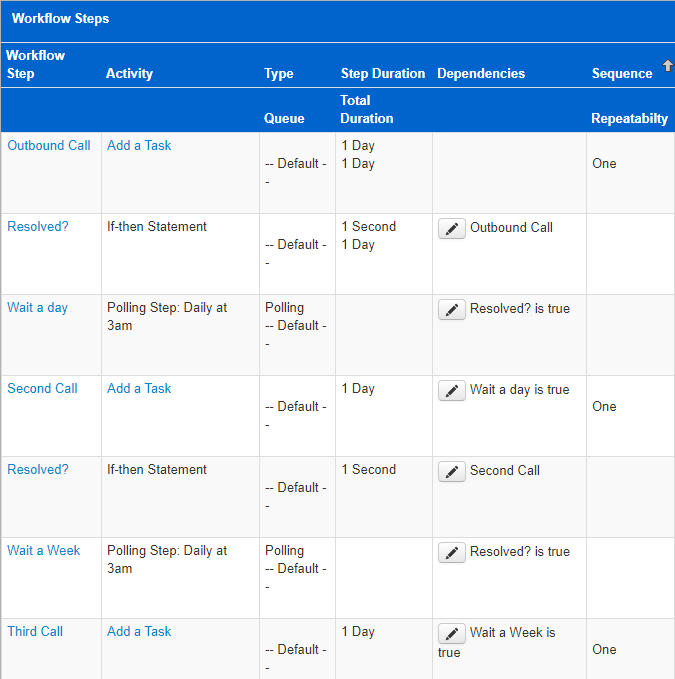
The screenshot shows the steps from an earlier build of this workflow, where each check was written to be true when the call was not resolved, so its waits depend on Resolved? is true. Either way works, as long as each dependency’s When matches the branch.
8. Start the workflow with each case
Section titled “8. Start the workflow with each case”From Templates > Processes, create a process template named Customer Outreach, set Workflow to Template, and choose Customer Outreach. Each new outreach process now starts the workflow, and the first call lands on the team’s worklist.
Result
Section titled “Result”Open a Customer Outreach process for a customer, and the rest runs itself. The first call appears on the team’s worklist. If the rep records Resolved, the workflow completes. If not, the second call appears a day later, the third a week after that, and if none of them resolves the matter, the process status changes to Unreachable, ready for a report or the next workflow.
Next steps
Section titled “Next steps”- Send a letter or text between attempts with a Send a Message step. See Messaging.
- Put a hold on the workflow when a customer asks you to call back later. See Workflow.
- Create outreach processes in bulk from a list in Create worklists from any source.