
Generate a claim document from a Word template
Verified against source (11)
attachment/Attachment.csAttachment/AttachmentTemplate.Edit.xsltAttachment/AttachmentTemplate.MSWord.xsltAttachment/AttachmentTemplate.Search.xsltAttachment/Attachment.Search.xsltapplication/AbstractObject.csqbo.Attachment.Aspose/AsposeXmlGenerator.csqbo.Attachment.Aspose/AsposeAbstractGenerator.csqbo.Attachment.Aspose/XmlMailMerge.csProperties/Settings.settingsConfig/Setup.AsposeWords.xml
Claim acknowledgements, review summaries, and coverage letters all follow a pattern: fixed wording around a handful of values from the claim, the policy, and the adjuster’s notes. In this walkthrough you write that letter once in Microsoft Word, mark where the values go, and let QBO fill them in. The result is an Insurance Review PDF that lands in the claim’s documents, generated with one click or automatically by a workflow.
Who it’s for
Section titled “Who it’s for”Power users who maintain document templates. Writing the Word document needs no technical skills beyond inserting merge fields.
Prerequisites
Section titled “Prerequisites”- Claims tracked as processes, as set up in Organize a policy’s claims, renewals, and onboarding as processes.
- A task template whose answers you want in the letter. This walkthrough uses a task named Claim Details with a question ClaimReason. See Forms.
- Permission to create document templates.
- Microsoft Word.
- The Aspose document generators installed on your QBO installation (your administrator can confirm).
Building blocks used
Section titled “Building blocks used”- Document Management: document templates, generators, and the Documents panel
- Cases: the claim the document is generated from
- Forms: the task whose answers are merged
- Workflow: generating documents automatically
1. Write the Word document
Section titled “1. Write the Word document”Open Word and write the letter. Wherever a value belongs, insert a merge field: choose Insert > Quick Parts > Field > MergeField and type the field name, or press Ctrl+F9 and type MERGEFIELD followed by the name inside the braces, for example { MERGEFIELD ClaimReason }.
Field names refer to the data QBO gathers for the claim: the claim’s own fields, its parent policy, its contacts, tasks, and other related records.
| Merge field | Merges |
|---|---|
Process |
The claim’s label |
ClaimReason |
The first ClaimReason answer found anywhere in the claim’s data |
ClaimDetails.ClaimReason |
ClaimReason from the task named Claim Details specifically. Use this when the same question appears on several tasks. Drop the spaces from the task name. |
InsurancePolicy.Coverage |
A field from the claim’s parent policy |
Contact.1.LastName |
The first contact’s last name. Use Contact.2.LastName for the second, and so on (positions 1 to 9). |
Contact.-.LastName |
The last contact’s last name, useful for the most recent of something |
A field with no matching data merges as blank. A malformed field name stops generation with an error naming the field, so test the template (step 4) before relying on it.
Save the document as .docx.
2. Create the document template
Section titled “2. Create the document template”Go to Templates > Documents, click +, and choose MS Word. Fill in:
| Field | Value |
|---|---|
| Name | Insurance Review |
| Module | Process |
| Document | Drag your Word document here |
Click Save. QBO creates a document template that applies to processes, with your Word document as its template file.
3. Point the template at the claim’s full data
Section titled “3. Point the template at the claim’s full data”Open the new template and click Edit:
| Setting | Value | Why |
|---|---|---|
| Data Source | Summary | Merges against everything QBO gathers for the claim: its fields, parent policy, contacts, tasks, and other related records |
| Plugin | Aspose-Xml |
Performs a Word mail merge against that data, using the field names from step 1 |
| Mime Type | application/pdf |
Produces a PDF. The MS Word form sets a Word mime type; leave it to get a .docx instead. |
| File Name Format | Insurance Review.pdf |
The name users see in the documents list |
| Path URL Format | /{Object}/{ObjectID}/{Guid}.{FileName} |
{Guid} keeps each generated file unique in storage, so regenerating never overwrites an earlier letter |
Click Save.
4. Generate a test document
Section titled “4. Generate a test document”On the template’s summary page, use Generate with the ID of a test claim, open the result, and check every merge field. Fix field names in Word and drag the corrected document onto the template’s Transform to replace it.
5. Generate from a claim
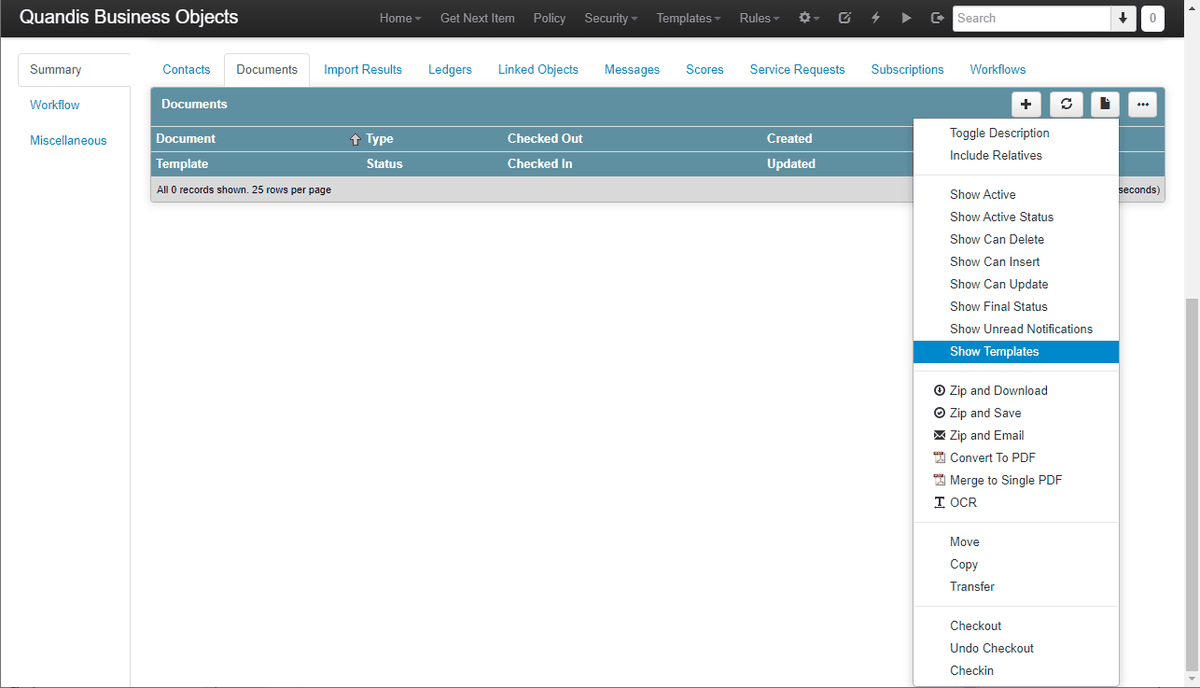
Section titled “5. Generate from a claim”Open a claim’s summary page, select the Documents panel, and choose Show Templates from its menu.
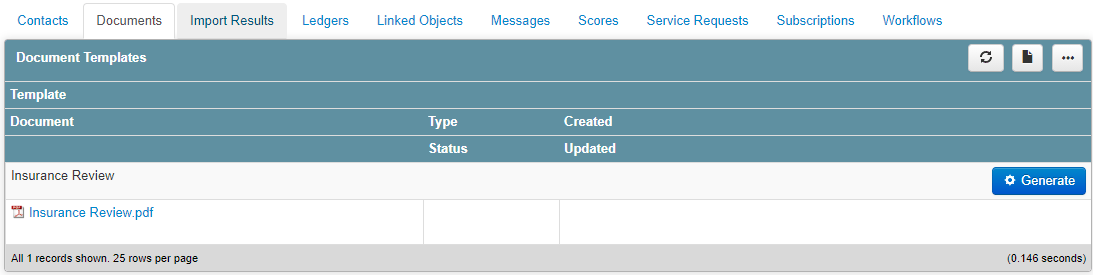
The panel lists every document template that applies to processes. Click Generate beside Insurance Review. The new PDF appears under the template, and in the claim’s documents.
6. Generate automatically
Section titled “6. Generate automatically”Users with permission can click Generate, but most letters should go out without anyone remembering to. Add a Generate a Document step to the claim’s workflow and choose the Insurance Review template. The step completes as soon as the document is generated, so the steps after it can email it, wait for a reply, or route it for review. See Workflow.
Systems outside QBO can generate the same document through the API:
GET /api/attachment/generate?Template=Insurance Review&Object=Process&ObjectID=1234For batches, queue the work for an app server instead:
GET /api/attachment/queue/generate?Template=Insurance Review&Object=Process&ObjectID=1234The result
Section titled “The result”Every claim can now produce a consistent, current Insurance Review letter in seconds, filled from the claim, its policy, and the adjuster’s task answers, and stored with the claim. Changing the wording means editing one Word document, not every letter.
Next steps
Section titled “Next steps”- Automate force-placed insurance notices and discrepancy review, where generated letters go out on a schedule.
- Read the full list of generators and storage options in Document Management.
- See how insurance teams use QBO on QBO for insurance.