
Score loans for a Freddie Mac Flex Modification with an Excel model
Verified against source (8)
score/Score.csEngines/AbstractEngine.csConfig/ScoreEngine.configqbo4.Document.Aspose.Bridge/CellsEngine.csInstaller/Setup.Document.Aspose.Bridge.xmlExtensions/WorkbookExtensions.csExtensions/ImportFileExtensions.csExtensions/ImportFileQueueExtensions.cs
Loss mitigation teams usually build modification waterfalls in Excel first: the analysts who understand the guidelines can express them as formulas, test them against real files, and adjust them when the program changes. The usual next step is to hand the spreadsheet to IT to re-implement in code, which takes time and creates a second copy of the logic that can drift from the first.
In this walkthrough you skip that step. You load the spreadsheet into QBO as a score template, so the workbook is the calculation: every workflow, batch, and API call runs the same formulas, and every result keeps a copy of the workbook it came from. The example models the Freddie Mac Flex Modification, but the same steps work for any spreadsheet-based calculation: other modification programs, net present value tests, pricing, or fee schedules.
Who it’s for
Section titled “Who it’s for”Power users who maintain score templates, working with the analyst who owns the spreadsheet. Running a batch and reading results is end-user work.
Prerequisites
Section titled “Prerequisites”- Excel, and a modification model that works on its own for a single loan.
- The Aspose integration installed, which provides the Excel scoring engine (
CellsEngine). See Integrations. - Permission to create score templates and run imports.
- Loans in QBO to score, or test loans you create for the purpose. Label test data clearly.
Building blocks used
Section titled “Building blocks used”- Scoring: score templates, score items, and the Excel engine
- Imports: scoring a spreadsheet of loans in one batch
- Workflow: branching on the result
- Document Management: merging results into letters and agreements
1. Lay out the model in Excel
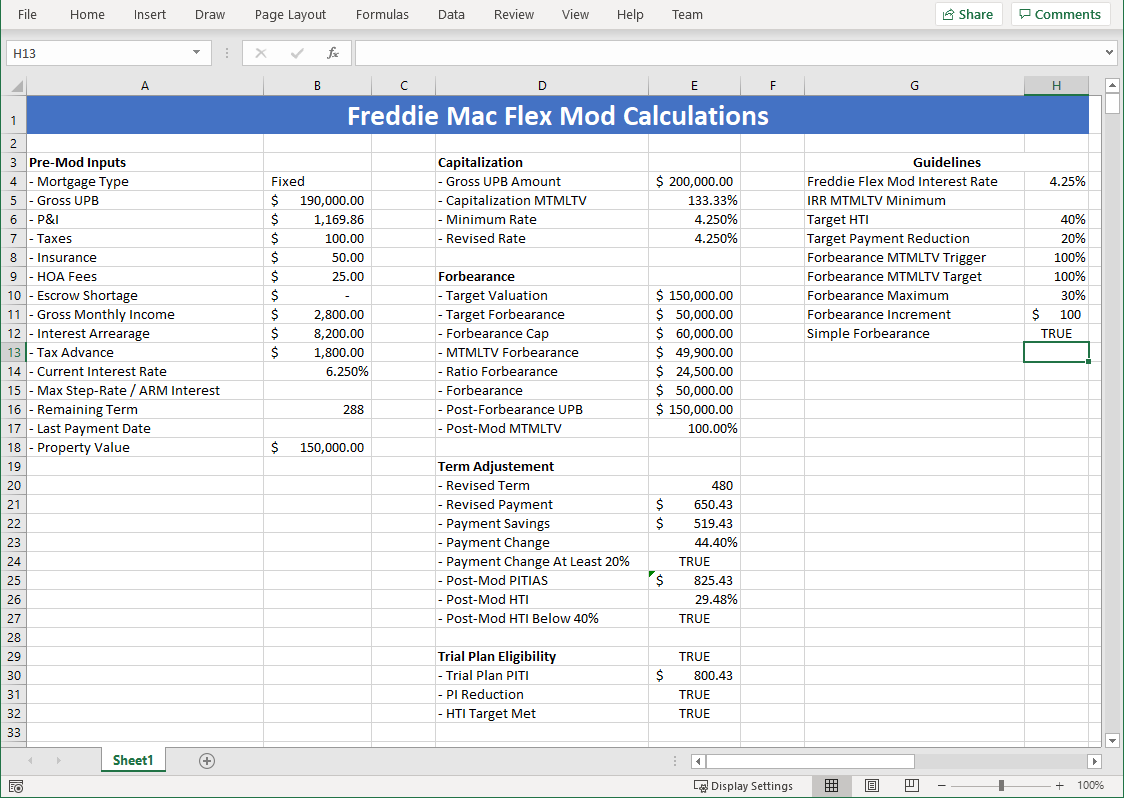
Section titled “1. Lay out the model in Excel”Build the calculation for one loan on a single sheet. A layout that reviewers can follow helps when compliance asks how a result was reached:
| Area | Contents |
|---|---|
| Pre-mod inputs | Loan data the model needs: mortgage type, unpaid principal balance, principal and interest, taxes, insurance, HOA fees, escrow shortage, gross monthly income, interest and tax arrearages, current rate, remaining term, last payment date, property value. |
| Calculations | Capitalization, the revised rate, forbearance, term extension, and the resulting payment and ratios. |
| Guidelines | The program parameters (target rate, target housing ratio, payment-reduction target, forbearance limits), kept in their own cells so they can be updated without touching formulas. |
Test the model in Excel with several known scenarios before going further. QBO runs your formulas exactly as written.
2. Name the cells QBO reads and writes
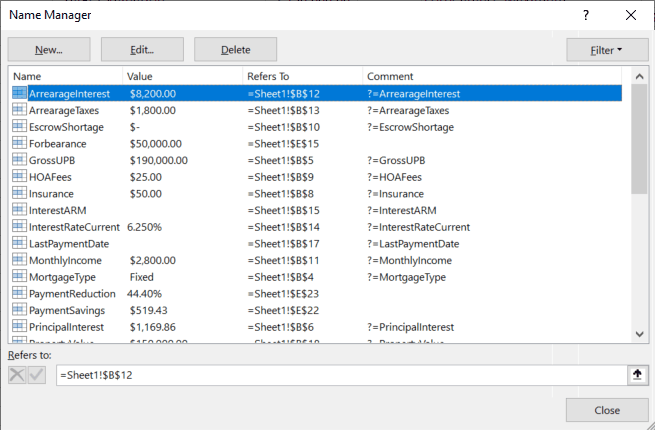
Section titled “2. Name the cells QBO reads and writes”QBO finds cells through Excel named ranges (Formulas > Name Manager):
- Inputs: name each input cell and set the name’s Comment to
?=followed by the field that supplies it, for example?=GrossUPB,?=PrincipalInterest, or?=Insurance. When QBO calculates the score, it writes that field’s value into the cell. - Outputs: name each result cell after the score item that will hold it, for example
RevisedTerm,RevisedPayment,PaymentSavings,PaymentReduction, orForbearance. Output names need no comment. - Overall value (optional): a cell named
ScoreValuebecomes the score’s headline value.
3. Create the score template
Section titled “3. Create the score template”From Design > Scores, add a score template:
| Setting | Value | Why |
|---|---|---|
| Score Template | Freddie Flex Mod |
The name used by batches, workflows, and API calls. |
| Applies To | Loan |
Each score is saved on the loan it describes. |
| Score Engine | CellsEngine |
The Excel engine from the Aspose integration. |
| Method | Parameters |
The input values arrive with each calculation (from a spreadsheet row or an API call). Leave Method empty to read inputs from the loan record instead, or enter a method signature to use a query’s results. |
| Value Type | Money |
The type of the overall value, if you named a ScoreValue cell. |
| Repeatable | Many per parent |
Keeps every calculation, so you can see how a loan’s result changed as its data changed. |
Then upload the workbook as the template’s Render file from the score template’s summary page.
4. Add a score item for each output
Section titled “4. Add a score item for each output”On the template’s Items panel, add one item per output range, with a matching value type:
| Item | Value type |
|---|---|
| Forbearance | Money |
| Payment Reduction | Float |
| Payment Savings | Money |
| Revised HTI | Float |
| Revised MTMLTV | Float |
| Revised Payment | Money |
| Revised PITI | Money |
| Revised PITIAS | Money |
| Revised Term | Int |
| Revised UPB | Money |
If an item has no matching range, QBO saves the item with the status Range not found; if the cell contains an Excel error, the status is Error. Either status after a test run means the workbook and the template disagree.
5. Score a batch of loans
Section titled “5. Score a batch of loans”Build a spreadsheet with one row per loan and a column for each input your ?= comments name (GrossUPB, PrincipalInterest, Insurance, and so on). Each row also identifies the loan being scored, with Object set to Loan and ObjectID set to the loan’s ID, so the score is saved on that loan.
Then either:
-
Open the Scores home page, choose the Freddie Flex Mod template, and drag the spreadsheet onto the banner. QBO queues a score calculation for each row.
-
Or import it with a BatchReader import template and three extra columns that tell QBO what to do with each row:
Column Value Meaning ClassNameScoreSend the row to scoring. OperationCalculateCalculate a score. TemplateFreddie Flex ModUse this score template.
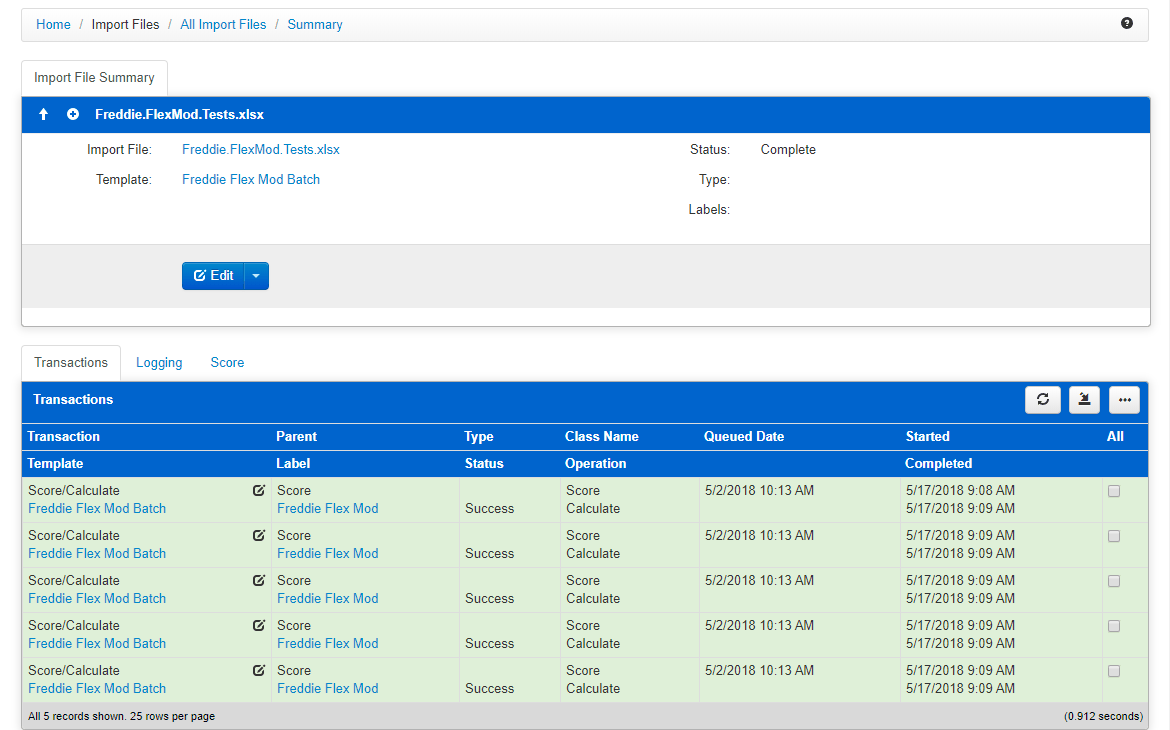
Either way, the upload is tracked as an import file, with one transaction per row and its own status, so failed rows can be fixed and retried.
From code, the same calculation for a single loan is:
GET /api/score/calculate?Template=Freddie Flex Mod&Object=Loan&ObjectID=1001&GrossUPB=190000&PrincipalInterest=1169.86&Insurance=50Use /api/score/queue/calculate to run it on an app server instead of the web server, and /api/importfile/scorecalculatebatch to score an uploaded spreadsheet. See Scoring for developers.
6. Review the results
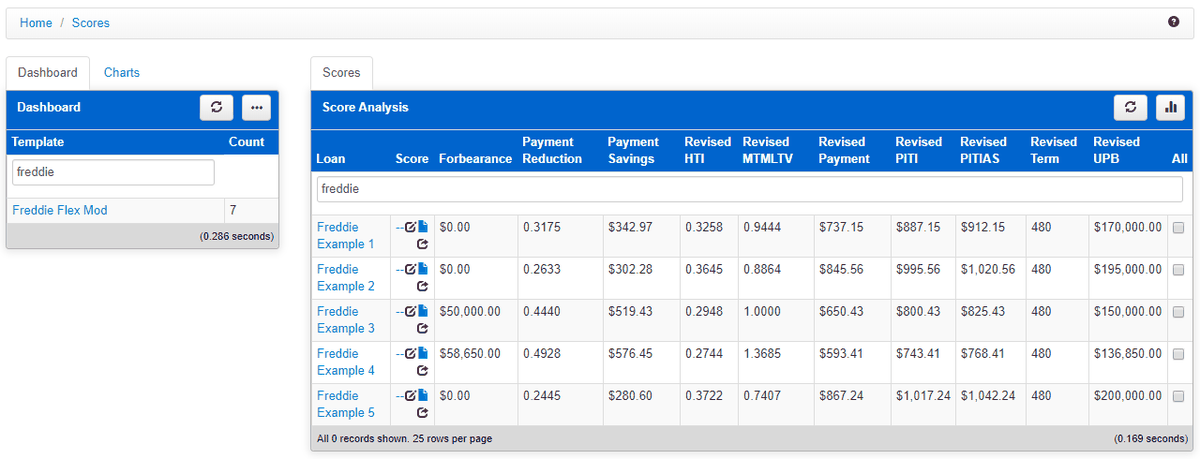
Section titled “6. Review the results”Open Home > Scores and choose the template. The score analysis shows one row per loan and one column per item.
The same data is available as a pivot for reporting or export:
GET /api/score/pivotbytemplate?Template=Freddie Flex Mod7. Audit a calculation
Section titled “7. Audit a calculation”Open any score on a loan. QBO saved the completed workbook with it: your formulas, unchanged, with that loan’s inputs written into the named cells and the results calculated. Anyone reviewing a decision can open the workbook in Excel and trace every number, without asking IT what the code did.
Result
Section titled “Result”You have a governed Flex Modification calculation that:
- runs the analysts’ own spreadsheet, at the version on the template, for every loan
- scores single loans on demand, whole portfolios by batch, or loans from another system by API
- keeps every result on the loan, with the exact workbook that produced it
When the program changes, update the guideline cells (or the formulas), test in Excel, and upload the new workbook. New calculations use it; earlier scores keep the workbook they were calculated with.
Next steps
Section titled “Next steps”- Add a Calculate a Score step to your loss mitigation workflow, then an if/then step that branches on an item such as Payment Reduction. See Workflow.
- Merge the revised terms into a trial plan or modification agreement template. See Document Management.
- Run several programs side by side with one score template per program, and compare results per loan. See Scoring.
- See how QBO supports loss mitigation, foreclosure, bankruptcy, and REO on Mortgage Servicing.