
Collect foreclosure sale instructions from attorneys and trustees
Verified against source (9)
mortgage/Auction.csmortgage/Auction.Fields.csdecision/ImportForm.csapplication/AbstractObject.csConfiguration/MethodListener.Edit.xsltConfiguration/Abstract.config.xsltmessage/Message.csimport/ImportFileTemplate.Fields.csqbo4.Events.Auction/README.md
A foreclosure sale generates a stream of instructions: the sale order, then postponements, cancellations, bid instructions, and finally confirmation that the sale cleared. That data starts with foreclosure attorneys and trustee firms, and every firm delivers it differently. Some call an API. Some send spreadsheets, each in its own layout. Some send so few that they’d rather type them into a screen.
In this walkthrough you build one intake for all three. Each kind of instruction becomes a form template. Firms can key a form, upload a spreadsheet, or post an API call, and all three land in the same place: a form under an auction record, with the loan and property filled in. A listener then passes each saved form on to the system that needs it, without caring how it arrived.
Who it’s for
Section titled “Who it’s for”Power users who run foreclosure sale and REO operations, and the developers who connect attorney, trustee, and auction systems. Processors and managers use the result day to day.
Prerequisites
Section titled “Prerequisites”- Permission to create form (task) templates, import file templates, and rules matrices, and to edit module configuration (for the listener).
- A sample spreadsheet from each firm that sends spreadsheets.
- For API senders, a QBO user and API key for each firm. See API keys and access links.
Building blocks used
Section titled “Building blocks used”- Cases: an auction is a kind of process, tied to a loan and a property, so related instructions share a parent
- Forms: one form template per instruction type
- Imports: spreadsheet layouts, translations, and per-row tracking
- Rules: a matrix that fills in or corrects data on each imported row
- Worklists: the dashboard that shows where work stands
- Architecture: the API and method listeners
1. Create a form template for each instruction
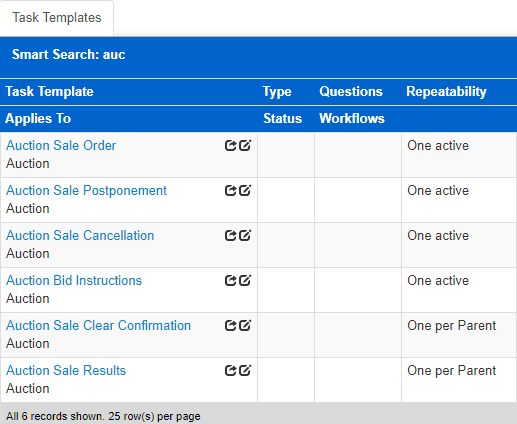
Section titled “1. Create a form template for each instruction”Open Templates > Tasks and create one task template per instruction, each applying to Auction:
| Task template | Repeatability |
|---|---|
| Auction Sale Order | One active per parent |
| Auction Sale Postponement | One active per parent |
| Auction Sale Cancellation | One active per parent |
| Auction Bid Instructions | One active per parent |
| Auction Sale Clear Confirmation | One per parent |
Because every template applies to Auction, all the instructions for one sale collect under the same auction record.
2. Lay out each form
Section titled “2. Lay out each form”Open each template’s GUI Designer and add the fields the instruction carries, such as trustee, trustee number, servicer, servicer loan number, auction date and time, notice of sale amount, beneficiary loan number, trustor, sale location, address, and APN. For each field, pick its format (date, currency, text) and mark it Require if the receiving system needs it.
Where a field belongs on the loan or property, name it so it saves there. A form’s fields can reach related records through {Parent}_{Field} names:
| Field | Name | Saves to |
|---|---|---|
| Servicer | Auction_Loan_Servicer_Organization |
The loan’s servicer organization |
| Servicer Loan # | Auction_Loan_ServicerLoanID |
The loan’s servicer loan number |
| Address | Auction_Property_Address |
The property’s address |
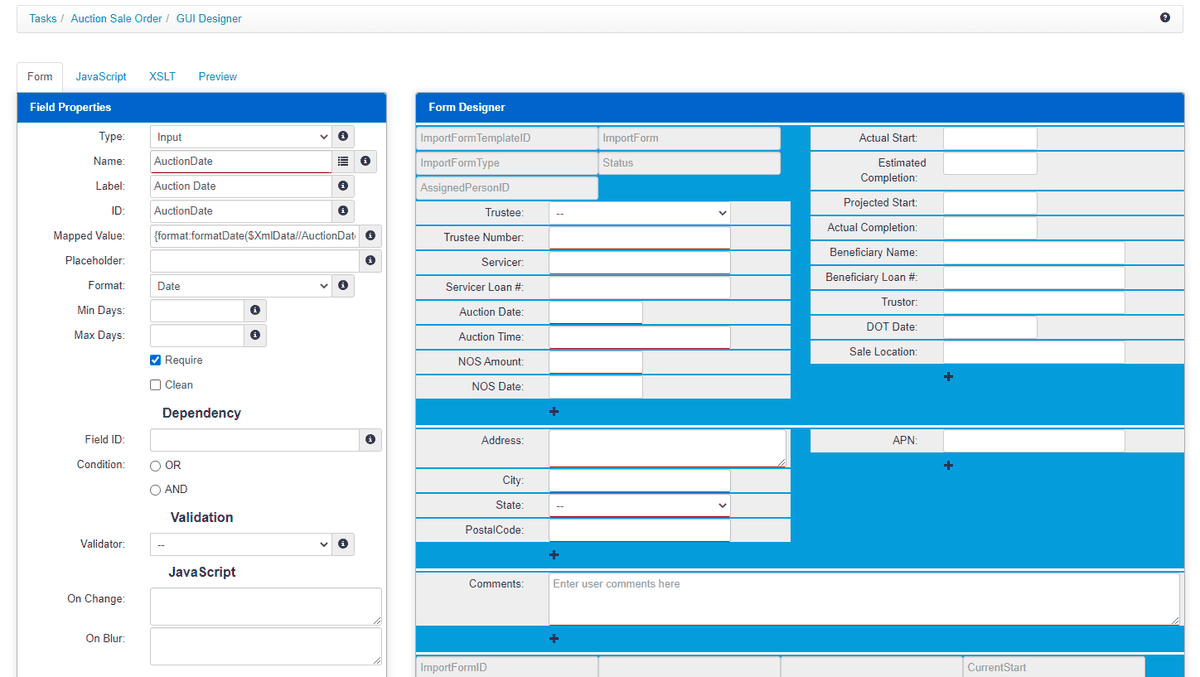
Firms with low volume can now key instructions directly: open an auction, add the form, fill it in, and save. See The GUI designer.
3. Teach QBO each firm’s spreadsheet
Section titled “3. Teach QBO each firm’s spreadsheet”Drag a firm’s sample spreadsheet onto the Tasks panel under Home > Tasks. If no import template recognizes its layout, QBO asks you to create one. Name it after the firm’s layout, set Applies To to ImportForm, choose the BatchReader engine, and submit.
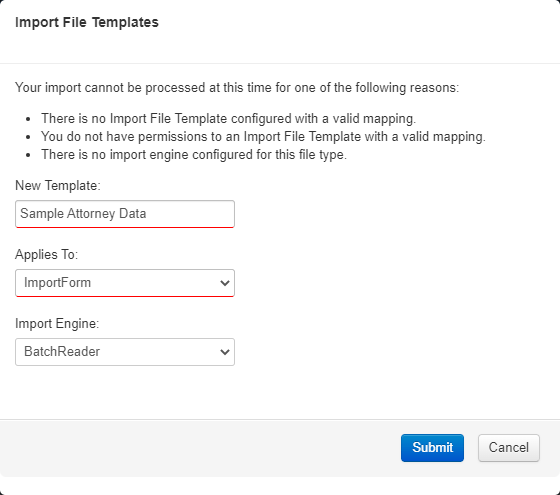
QBO creates the template with a mapping for every column it found. Then refine it:
- Mappings. Where a column name doesn’t match a form field, edit the mapping and set its Destination to the field name, for example a column called Loan Number to
Auction_Loan_ServicerLoanID. - Translations. Build values from other columns. A key that identifies the sale, such as a Destination of
Auction_SubscriberIDwith a Translation ofacme.example-SaleOrder-{Auction_Loan_ServicerLoanID}-{TrusteeReferenceNumber}, makes every later instruction for the same loan and trustee reference land on the same auction instead of creating a new one. - Translation matrix. Attach a rules matrix to add or correct data on every row. For example, a matrix with inputs
PropertyCountyandAuction_Loan_Servicer_Organizationand an outputSaleLocationcan fill in the courthouse for each county, with an exception for a servicer that handles its own sales. When a matrix output matches an existing column, it overwrites the value; otherwise it adds a new column.
See Mappings and Template settings.
4. Import spreadsheets in bulk
Section titled “4. Import spreadsheets in bulk”From now on, anyone can drag that firm’s spreadsheets onto Home > Tasks and QBO imports and maps them without prompting. Behind the scenes, each upload becomes an import file, with one transaction per row.
Rows that fail validation are flagged on the import file’s Transactions panel. Open a failed transaction to see the data exactly as it was translated from the spreadsheet, correct it, and process it again.
5. Accept API calls
Section titled “5. Accept API calls”API senders post the same data directly. /api/importform/import reads an XML body and imports the first ImportFormItem in it, so send one instruction per call:
POST /api/importform/importContent-Type: application/xml
<?xml version="1.0" encoding="utf-8"?><ImportFormCollection>  <ImportFormItem>    <ImportForm>Auction Sale Order</ImportForm>    <Template>Auction Sale Order</Template>    <Object>Auction</Object>    <TrusteeReferenceNumber>TR-0001</TrusteeReferenceNumber>    <AuctionDate>02/04/2027</AuctionDate>    <AuctionTime>11:00 AM</AuctionTime>    <NoticeOfSaleAmount>123,456.78</NoticeOfSaleAmount>    <BeneficiaryLoanNumber>TEST-1001</BeneficiaryLoanNumber>    <SaleLocation>County courthouse, main entrance</SaleLocation>    <AssignedOrganization>Example Trustee Services</AssignedOrganization>    <Auction_Auction>100 Sample Street</Auction_Auction>    <Auction_SubscriberID>acme.example-SaleOrder-TEST-1001-TR-0001</Auction_SubscriberID>    <Auction_Loan_Loan>TEST-1001</Auction_Loan_Loan>    <Auction_Loan_LoanType>Conventional</Auction_Loan_LoanType>    <Auction_Loan_Servicer_Organization>Example Servicing</Auction_Loan_Servicer_Organization>    <Auction_Loan_ServicerLoanID>TEST-1001</Auction_Loan_ServicerLoanID>    <Auction_Property_Address>100 Sample Street</Auction_Property_Address>    <Auction_Property_City>Worcester</Auction_Property_City>    <Auction_Property_State>MA</Auction_Property_State>    <Auction_Property_PostalCode>01606</Auction_Property_PostalCode>  </ImportFormItem></ImportFormCollection>
The response is the saved form, including the auction it was filed under (Object and ObjectID), its own ImportFormID, the assigned organization, estimated and actual completion dates, and the instruction data:
<ImportFormItem> <Object>Auction</Object> <ObjectID>275</ObjectID> <AssignedOrganizationID>21</AssignedOrganizationID> <ImportForm>Auction Sale Order</ImportForm> <ImportFormID>354</ImportFormID> <ImportFormTemplateID>6</ImportFormTemplateID> <XmlData> <ImportFormXml> <Template>Auction Sale Order</Template> <TrusteeReferenceNumber>TR-0001</TrusteeReferenceNumber> <AuctionDate>02/04/2027</AuctionDate> … </ImportFormXml> </XmlData></ImportFormItem>The call runs synchronously. Every screen and spreadsheet in the steps above uses the same operations, so an API sender gets exactly the same validation, mapping, and auction matching. See Routes and Authenticating API calls.
6. Pass each instruction on
Section titled “6. Pass each instruction on”A method listener works like a webhook inside QBO: when a named operation runs, it calls another operation. Open the form module’s configuration (Configuration > Modules > Task Configuration), go to Method Listeners, and add one:
| Setting | Value |
|---|---|
| Name | A name for the listener, such as APISaleOrder |
| Type | QueueListener, so the follow-up runs on a queue instead of delaying the save |
| Methods | Save |
| Request | The module, operation, and parameters to call, with values substituted from the saved form |
To try it without a receiving system, point the request at the Message module’s SaveEmail operation with Object=ImportForm, ObjectID={ImportFormID}, and Template=Auction Sale Order. Every saved sale order then produces an email containing its data, and each email is kept as a message record you can audit.
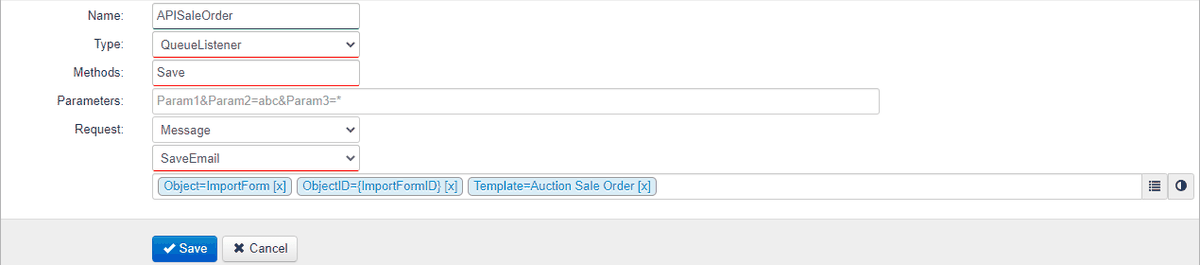
It doesn’t matter whether a form was keyed, imported, or posted: the listener fires on every save. In production, point the request at the operation that delivers the instruction to its destination.
The result
Section titled “The result”Every sale instruction, from every firm, arrives as a form under the right auction, whether it came from a screen, a spreadsheet, or an API call. The auction’s summary page brings together its documents (added on screen, through the API, or from a watched folder), messages and notes, service requests (the request and response log for every outbound call), and every instruction form, due or completed. The Worklists dashboard groups open forms by task, user, or team, so managers can see where instructions are stuck. Onboarding a new firm means adding an import template for its layout, or an API key, not a new process.
Next steps
Section titled “Next steps”- Add a worklist for each instruction type, so overdue postponements and cancellations are owned.
- See all industry systems QBO connects to, including Auction.com, on Integrations.
- See how sale management fits REO and disposition on Mortgage servicing.